

Are you seeking a reputable iOS bug fixer? If so, you’ve come to the right spot since we’ll be reviewing one of the greatest and most popular software programs available today, TunesKit iOS System Recovery, which can be used to cure iOS-related issues directly on your desktop.
When you use TunesKit iPhone System Recovery, you may quickly and efficiently resolve any iOS issue without contacting Apple’s technical support.
How does it work?
With the help of this programme, you can fix a variety of software issues that iOS users all over the world experience, including being stuck on the boot screen, performing iOS system repair, having your phone not turned on, experiencing software freezes, boot loops, and more. Because the programme is intended to be simple, it can be used by those who are not technically literate.
Furthermore, this programme aids you in recovering from serious troubles with your iPhone without having to worry about service delays or losing your hard-earned money on service bills because of the software.
It is possible to recover from even the most serious difficulties, such as iOS update failures and data damage, with the help of TunesKit. This programme is compatible with both macOS X and Microsoft Windows operating systems.
Furthermore, it may aid you in downgrading iOS to a previous version in a short period. You may also use this programme to troubleshoot any issues you may be experiencing when restoring or backing up your device using iTunes. Furthermore, when the iPhone becomes stuck, it has the ability to enter or leave recovery mode with a single touch.
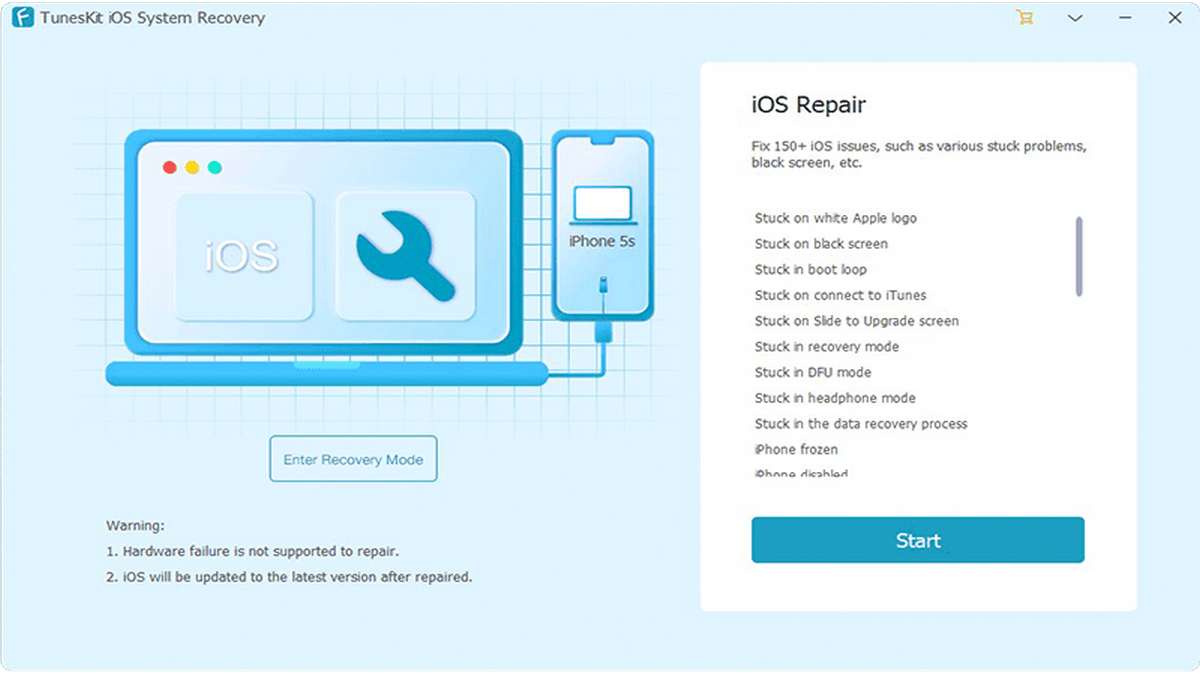
Features of Tuneskit iOS System Recovery
The following are the features of TunesKit iOS System Recovery: –
- It is a user-friendly iOS repair tool that provides the ability for everyone to immediately enter and exit Recovery Mode with a single easy click (for free).
- Recovery Mode is also available to non-registered users at no additional charge.
- The app automatically configures the iPhone’s state in a step-by-step manner.
- The iOS System Repair utility restores the functionality of iOS devices to their previous state.
- It is completely safe and clean to recover data as well as to repair devices without causing any data loss.
- You can reach customer service 24 hours a day, 7 days a week.
- Easy to use, even with no technical expertise may run it without encountering any problems.
- It aids in the recovery of the iOS/tvOS operating system without causing data loss.
- All iOS devices are supported.
There are two modes available in the recovery software:
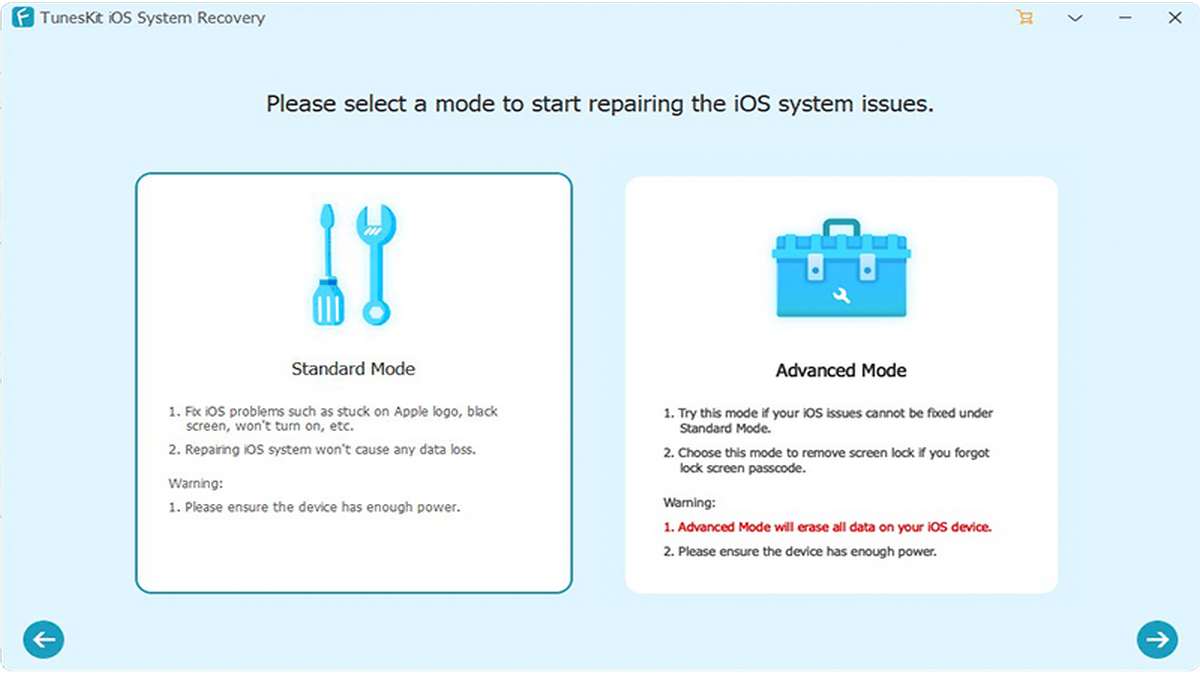
Standard Mode
When you need to fix a common problem as an iPhone stuck in Recovery Mode, you may use Standard Mode to restore your device without losing any data. Connect your device, choose Standard Mode, and then follow the on-screen directions to get started. Immediately after installing a new firmware package, your device will be instantly restored.
Advanced mode
Only use it when the Standard Mode isn’t working on your devices, and you don’t want to lose all of your info. You’ll need to put your phone into DFU mode for this method. The screen will display instructions.
To restore your device, you’ll need to use the utility to download and install the latest firmware. Both Standard and Advanced Modes allow you to click Done and detach your device from the computer after the operation is complete.
How can I repair problems with the TunesKit iOS System Recovery software?
TunesKit iOS System Recovery protects you against a wide range of iOS issues and fixes your system without causing any data or file loss or corruption.
iOS system faults will be resolved without any data on your device being altered or leaked. A standard problem may be solved using this method.
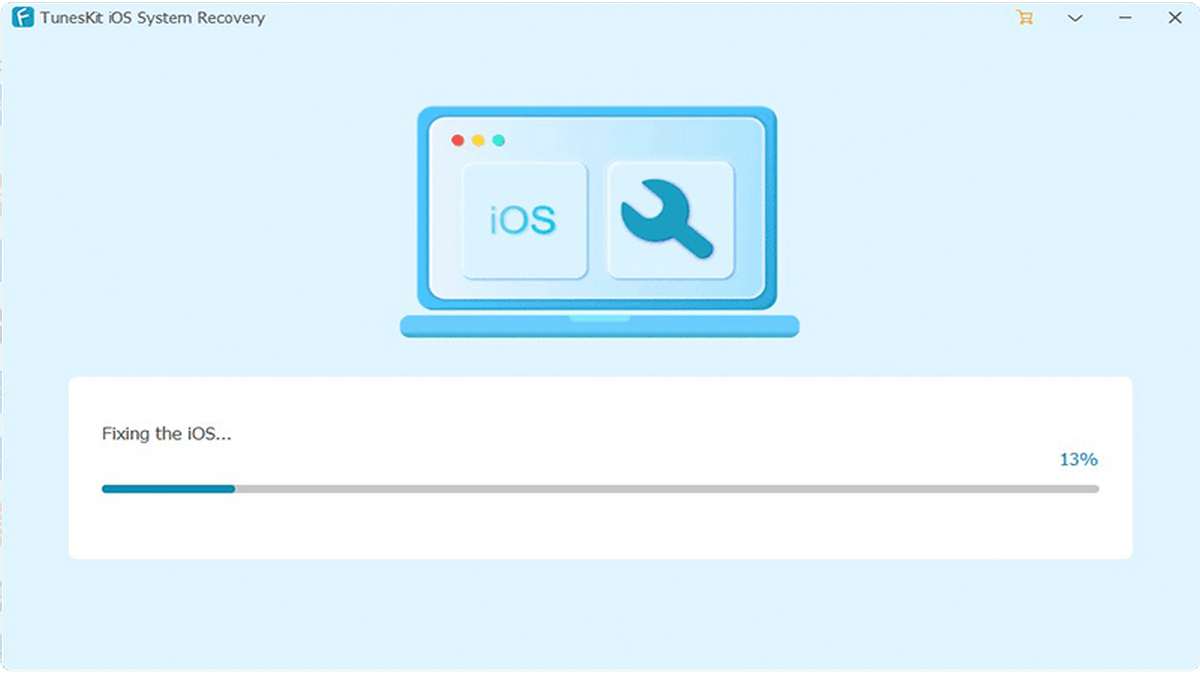
Fix System Issues on iOS and tvOS in Standard Mode (Without Loss of Data):
When you encounter a typical iOS problem, such as an iPhone stuck in recovery mode or an iPhone that loops when it first starts, Standard Mode is available to assist you. You will not lose any information stored on your device when using this mode.
- Launch the TunesKit iOS System Recovery for Mac.
- Connect your device to your computer using the USB cable provided.
- A window will open if it has been recognised by clicking the “Start” button.
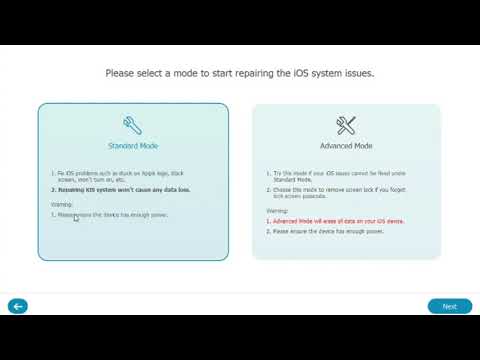
- Choose the “Standard Mode” repair mode and click “Next” after selecting it.
- Then, in the new window, you’ll be asked to manually enter DFU or recovery mode using your device. Then, to continue, follow the on-screen instructions and click “Next.”
- Alternatively, you may just press the “Enter Recovery Mode” button to place your iPhone, iPad, iPod touch, or Apple TV in recovery mode with a single click.
- Verify that the device information is correct. You will need to manually fix it before downloading the firmware if this is not the case.
- To complete the process, click the “Download” button.
- The “Repair” button will be displayed once all of your firmware has been downloaded entirely and installed.
This software will resolve the errors in a few minutes, so please be patient. Remember to maintain your device linked to the Mac at all times during the procedure in order to avoid any unforeseen difficulties.
To learn more about this iOS System repair tool, watch this video below:
The Pros and Cons of TunesKit iOS System Recovery
Pros:
- There are two versions available: one for Mac and one for Windows.
- Beginner-friendly.
- It is capable of resolving virtually any issue you could have with an Apple device.
- You have the option of restoring your smartphone to Standard Mode without losing any of your essential data.
Cons:
- TunesKit is only capable of repairing iOS system issues.
- The free trial edition of the software only provides access to a restricted range of functions.
Final Thoughts
For iOS devices, TunesKit iOS System Recovery is a fantastic tool for quickly and efficiently fixing software-related difficulties. Customers may utilise this product without any prior technical knowledge, which is its key selling point. The Programme can only fix software issues on iOS devices; this must be kept in mind. It is unable to correct hardware issues.
You may restore your iOS or tvOS devices from the comfort of your home by just pressing one button with this application. With this iOS system repair tool, you don’t have to worry about losing any of your money because it has a 30-day money-back guarantee.
-
![Here's a list of 10 Best Translate English To Hindi Free Android Apps [2026]](https://androidcure.com/wp-content/uploads/2026/02/Best-Translate-English-To-Hindi-Free-Android-Apps-390x220.webp)
-

-

-

-

-

-

-

