Whether you are switching from iPhone to Android, or you simply wish to copy some of your contacts between your devices, this guide has you covered.
It can be surprisingly tricky to transfer your contacts from your old phone to your new one, especially if you prefer not to use cloud services provided by Google or iCloud to manage your contacts.
This article shows an easy way to copy your contacts to your new phone, whether your contacts are stored in the cloud or in your device storage.
The quickest and easiest way to transfer your contacts from iPhone to your Android device is using the Contact Transfer app by Wide Angle Software. This powerful app allows you to transfer contacts between all your iPhone, iOS devices and Windows PCs.
Here is how to copy your contacts from your iPhone to Android. Before you begin, you will need to-
- Download and install Contact Transfer on your PC
- Get the Contact Transfer app on your Android device from Google Play Store.
- Make sure that iTunes is installed on your PC – this is required to establish a connection with your iPhone.
- Ensure that your PC and Android device are connected to the same Wi-Fi network – this is essential to secure a connection with Android devices.
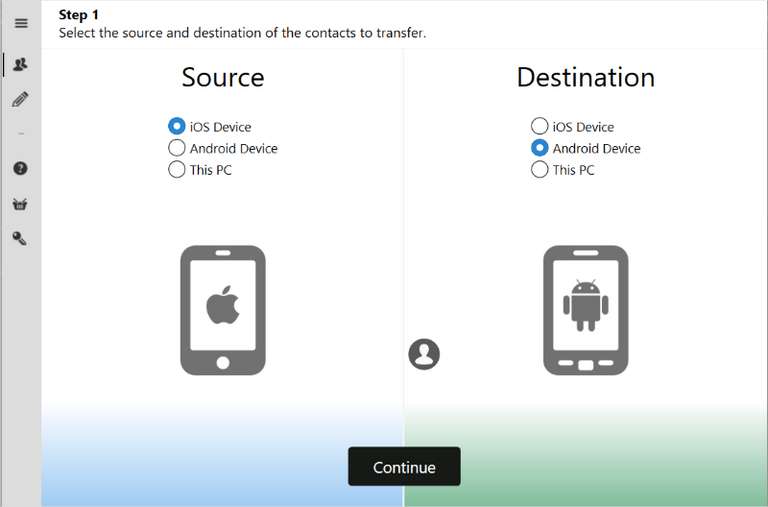
Step 1 : Launch Contact Transfer on your PC and select “iOS Device” as your Source, and “Android” as your destination device.
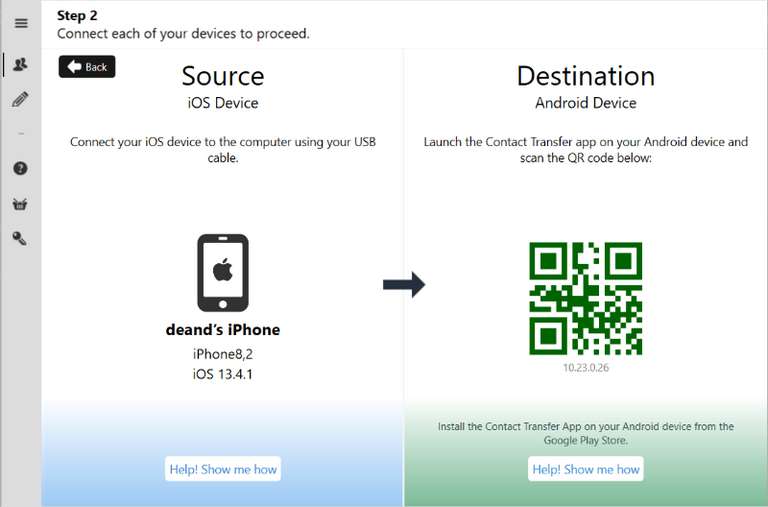
Step 2 : Connect your devices to Contact Transfer on your PC-
- Hook up your iPhone to the PC using your USB cable.
- You can connect your Android phone to Contact Transfer over Wi-Fi. To do this, open the Contact Transfer app on your Android device. Tap “Scan Contact Transfer QR Code” – this will open the device’s camera and show a red scanner line. Hold up the camera to the QR code shown on Contact Transfer on your PC to make the connection.
Step 3 : Browse contacts on your iPhone and select the ones that you wish to transfer-
You can select all contacts by clicking the “All” box, or tick individual contacts that you want to transfer.
Please note that If your iPhone is set to store your Contacts in iCloud, you will need to download them to your iPhone in order to be able to use Contact Transfer to transfer them to your Android device. Here’s how to download iCloud contacts to your iPhone storage:
- On your iPhone, open Settings > your name > iCloud.
- Here, tap Contacts to toggle off iCloud Contacts.
- When asked what you’d like to do with contacts on your device, tap “Keep on my iPhone”.
- Now your iPhone will download your contacts from iCloud.

Step 4 : Click Transfer in Contact Transfer app on your PC to start transferring your selected iPhone contacts to your Android device.

It really is that easy! As if by magic, your iPhone contacts will start appearing on your Android phone.
Watch this video to see Contact Transfer in action!:

Powerful Contact Manager
Contact Transfer will copy your contacts between all your devices, simply choose your source and destination device in Contact Transfer and let the magic begin. You can transfer contacts from…
- iPhone to Android
- Android to iPhone
- Android to Android
- iPhone to iPhone
- iPhone to PC – transfer iPhone contacts to Windows Contacts or save vCards to your PC
- Android to PC – transfer Android contacts to Windows Contacts or save vCards to PC
The app also has various additional features allowing you to manage your contacts:
- Add new contacts – create and save new contacts to your Android or iPhone, right from your PC. Set information like names, numbers, addresses, notes, and contact image.
- Edit contacts – update contact info or add new fields.
- Delete contacts – delete contacts from your connected device, right from your PC. You can even select multiple contacts from the list using ctrl-click and delete batches of contacts at once.
You can find these tools by clicking the pencil icon in the toolbar on the left of the Contact Transfer software on your PC.

Key Takeaways
And there you have it – now you know how to easily transfer contacts from iPhone to Android, without worrying about cloud service syncing and manual file transfers. You also now have a great tool at your fingertips to help you manage your contacts on iPhone, Android and PC.
So why not download the free demo of Contact Transfer on your PC and take it for a spin?
The free demo download enables you to transfer up to 5 contacts for free. To unlock all features of the software and to remove the transfer limitation, you can purchase a lifetime licence from Wide Angle Software for $15. There is even free, friendly customer support available should you have any queries or troubles!
-
-

-
-

-

-

-

-

