
Whether you’re experiencing performance issues, selling your phone, or simply want a fresh start, performing a reset on your Samsung Galaxy S24 / S24 Plus / S24 Ultra can be a great solution. However, with different reset methods and important considerations, it’s crucial to understand the process before diving in. This guide will walk you through everything you need to know about resetting your Galaxy S24 / S24 Plus / S24 Ultra.
Important Note: Before proceeding with any reset, back up your data thoroughly. Photos, videos, contacts, app data, and other personal information will be erased during the process. Ensure you have a backup on a computer, cloud storage, or external drive.
How to backup your Samsung Galaxy S24 / S24 Plus / S24 Ultra
Before diving into the reset process, securing your precious data is crucial. Here are several methods for backing up your Samsung Galaxy S24:
1. Samsung Cloud:
- Go to Settings > Accounts and backup > Samsung Cloud.
- Tap Back up data.
- Select the data types you want to back up (contacts, calendar, notes, etc.).
- Tap Back up now.
- This method requires a Samsung account and enough storage space in your cloud.
Also see:
2. Google Drive:
- Go to Settings > Accounts and backup > Google Drive.
- Tap Back up data.
- Choose the data types you want to back up (apps, photos, device settings, etc.).
- Tap Back up now.
- This option utilizes your Google Drive storage, so ensure enough space is available.
3. Smart Switch (on PC or Mac):
- Download and install Smart Switch on your computer.
- Connect your Galaxy S24 to your computer using a USB cable.
- Open Smart Switch on your computer and follow the on-screen instructions.
- Select the data types you want to back up and initiate the process.
- This method offers a comprehensive backup solution, including app data and settings.
4. Individual App Backups:
- Many apps offer built-in backup features within their settings.
- Explore individual app settings to find and utilize their backup options.
- This method is specific to each app and doesn’t provide a complete device backup.
How to reset Samsung Galaxy S24 / S24 Plus / S24 Ultra
Reset Options:
There are two main types of resets you can perform on your Galaxy S24:
- Soft Reset: This restarts your phone, similar to rebooting a computer. It’s helpful for minor glitches or freezing issues.
- Factory Data Reset: This wipes all your data and settings, returning your phone to its original state. Use this option cautiously, as it’s irreversible.
What is a Soft Reset?
In the context of smartphones like the Samsung Galaxy S24, a Soft Reset is essentially a forced restart. It’s similar to rebooting your computer, but done through hardware button combinations instead of going through the software menu.
Here’s what a Soft Reset does:
- Closes all running apps and processes: This can clear temporary memory issues and fix minor performance glitches.
- Refreshes the system UI: It can resolve issues like unresponsive touchscreens or lagging displays.
- Reloads system drivers and services: This can fix minor software bugs or conflicts.
However, a Soft Reset does not erase any data or settings. Your personal information, apps, and configurations remain intact.
When to use a Soft Reset:
- Your phone freezes or becomes unresponsive.
- An app crashes repeatedly.
- The touchscreen seems laggy or unresponsive.
- The phone experiences minor performance issues like stuttering or slowness.
Also see:
How to perform a Soft Reset on Samsung Galaxy S24 series smartphones:
- Press and hold the Power button and the Volume Down button simultaneously.
- Hold them for about 7 seconds.
- Your phone will vibrate and power off. Wait a few seconds.
- It will automatically restart.
Remember, a Soft Reset is a safe and non-destructive option for troubleshooting minor issues. If your problems persist, you might need to consider other options like clearing app cache or even a factory reset (but always remember to back up your data first!).
How to perform a factory reset on Samsung Galaxy S24 / S24 Plus / S24 Ultra

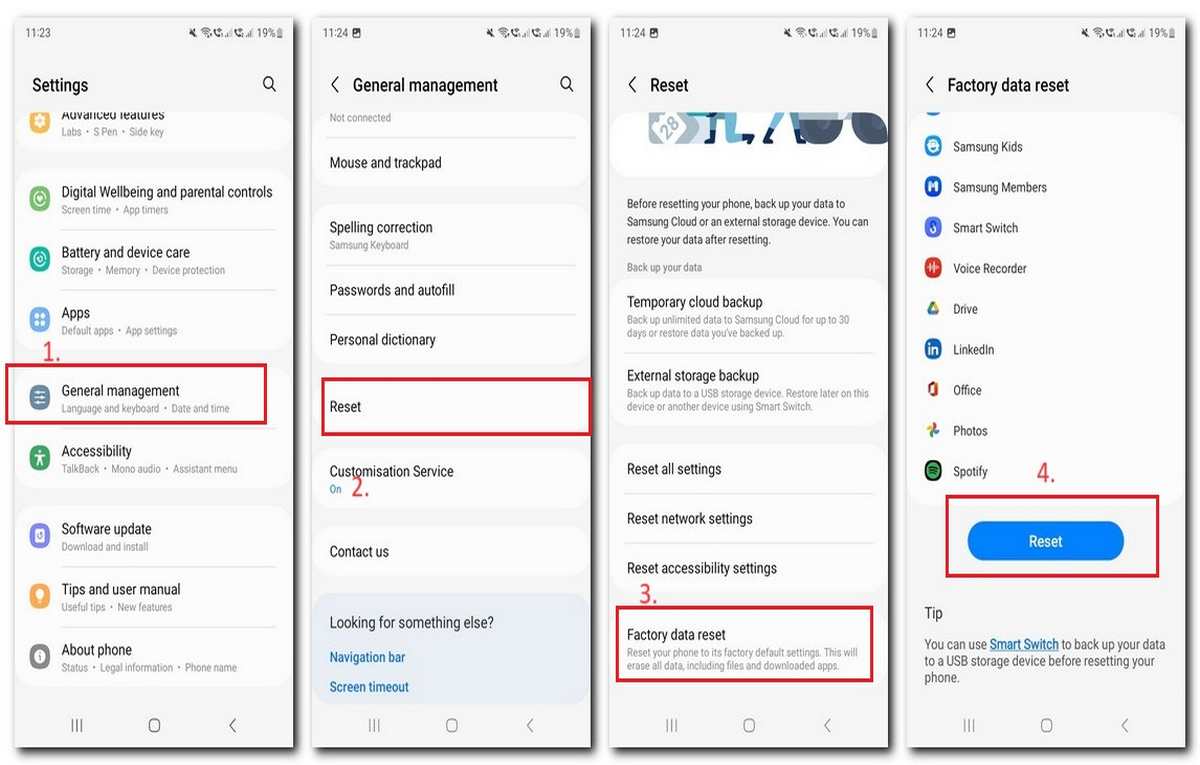
Performing a Factory Data Reset (Method 1: From Settings):
- Open the Settings app.
- Scroll down and tap General management.
- Tap Reset, then Factory data reset.
- Review the information and tap Reset.
- If prompted, enter your PIN, password, or pattern.
- Tap Erase everything.
- Your phone will erase all data and restart.

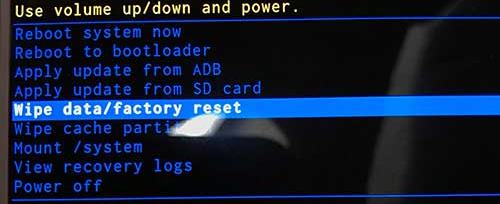
Performing a Factory Data Reset (Method 2: Using Hardware Buttons):
- Ensure your phone is turned off.
- Press and hold the Volume Up button and Power button simultaneously.
- When the Samsung logo appears, release all buttons.
- Use the Volume buttons to navigate and highlight Wipe data/factory reset. Press the Power button to select.
- Select Yes and press the Power button to confirm.
- Your phone will erase all data and restart.
Additional Tips:
- If your phone is unresponsive or you can’t access the Settings menu, use the hardware button method for a factory reset.
- Remember, a factory reset erases everything. Double-check you have backups before proceeding.
- After the reset, you’ll need to set up your phone again, including logging in to your Google account and reinstalling apps.
- Consider using Samsung Smart Switch to easily transfer data from your old phone to the new one after a reset.
Wrap-up
Resetting your Galaxy S24 can be a valuable tool for troubleshooting or starting fresh. By understanding the different reset options and following the steps carefully, you can perform a safe and successful reset on your phone. Remember to back up your data beforehand and enjoy the renewed performance and fresh start!
-

-

-

-

-

-

-

-

