Got a Samsung Galaxy F14? These phones are awesome when they’re zippy and new, but let’s be honest – sometimes they start to feel a bit…slow. Don’t worry, that doesn’t mean it’s time to break the bank on an upgrade. There are a bunch of surprisingly easy things you can do to get your F14 feeling snappier and running smoother in no time. Ready to give it a boost? In this article, we’ll help you with 10 best tips and tricks to speed up / boost performance on Samsung Galaxy F14 smartphone.

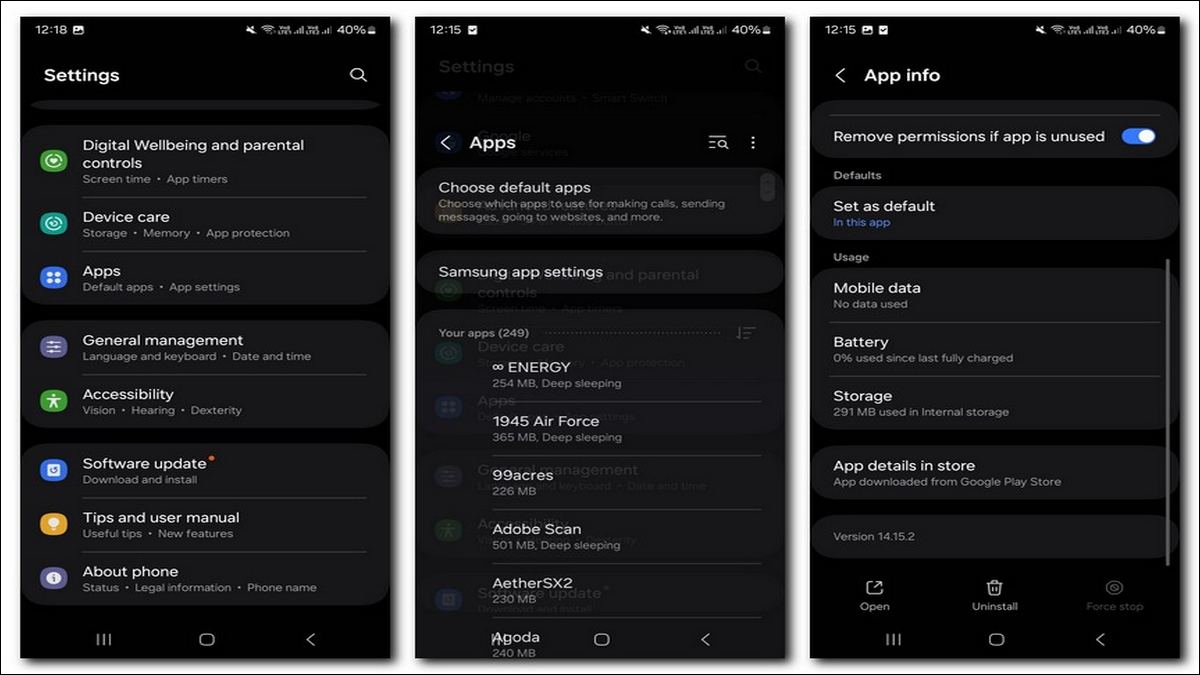
Tip 1: Free Up Storage Space
Think of your phone’s storage like a closet. When it’s overflowing, it’s hard to find what you need. Same goes for your phone! Here’s how to declutter:
- Uninstall unused apps: Be ruthless! If you haven’t used an app in months, it’s gotta go.
- Delete old photos/videos: Back them up to a cloud service (like Google Photos) or your computer, then free up space on your phone.
- Clear app cache data: Go to your phone’s Settings > Apps, and clear the cache of your most frequently used apps.
Tip 2: Manage Background Apps
Apps running in the background can munch on your phone’s power. Here’s how to tame them:
- See what’s running: Go to Settings > Developer Options > Running Services. This shows you which apps are active.
- Put them to sleep: If you see an app that doesn’t need to be running all the time, you can usually “Force Stop” it safely.
Follow — this guide to enable Developer Options your phone.
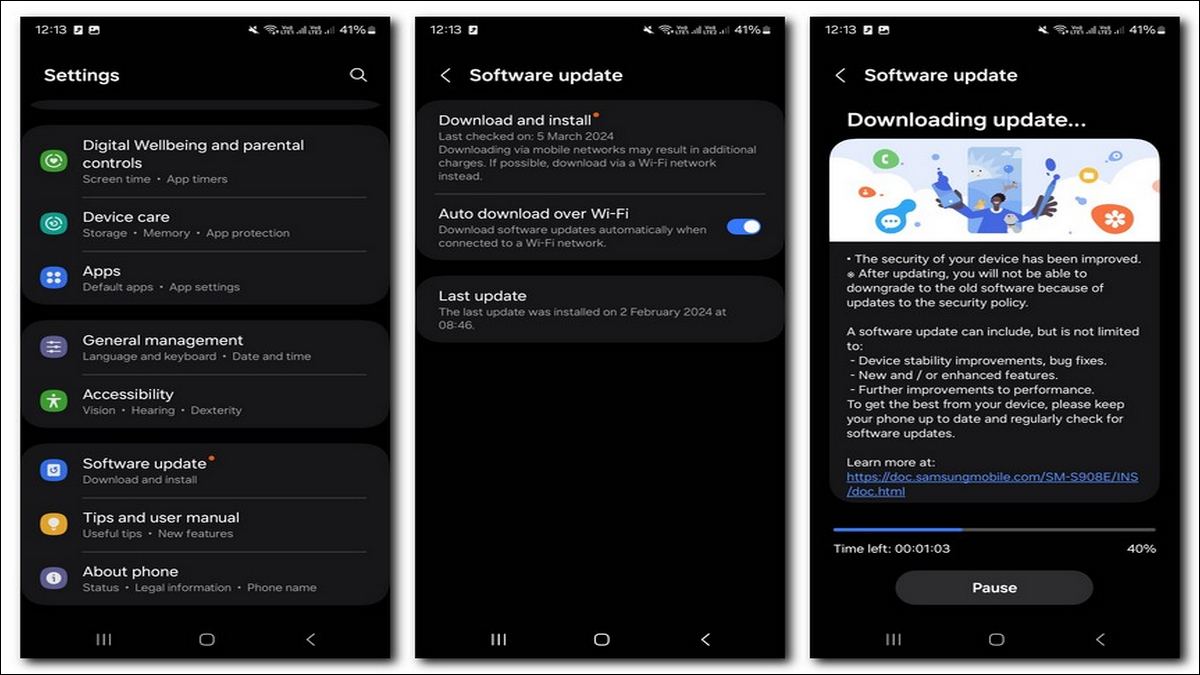
Tip 3: Keep Software Updated
Updates aren’t just about new features! They often have fixes and improvements that keep your phone running smoothly.
- Check for updates: Go to Settings > Software Update and see if anything is waiting for you.
Tip 4: Reduce Visual Effects
Live wallpapers and fancy transitions look cool, but they take a toll. Here’s how to simplify:
- Switch to a static wallpaper: A simple picture background is less taxing for your phone.
- Reduce animations: In Developer Options (you may need to enable these in Settings), find settings like ‘Window animation scale’ and turn them down a bit.
Tip 5: Restart Your Phone Regularly
Think of a restart like a quick nap for your phone. It might seem too simple to make a difference, but here’s what happens when you hit that restart button:
- Clears out the gunk: Apps and even the operating system itself sometimes create temporary files that clog up the works. A restart wipes those away.
- Resets background processes: Apps that might have been quietly hogging resources in the background get shut down completely.
- A fresh start: It’s like giving your phone’s brain a moment to reset, potentially fixing those random glitches that happen over time.
How often? Aim for a restart at least once a week. Doing it more often won’t hurt anything either!
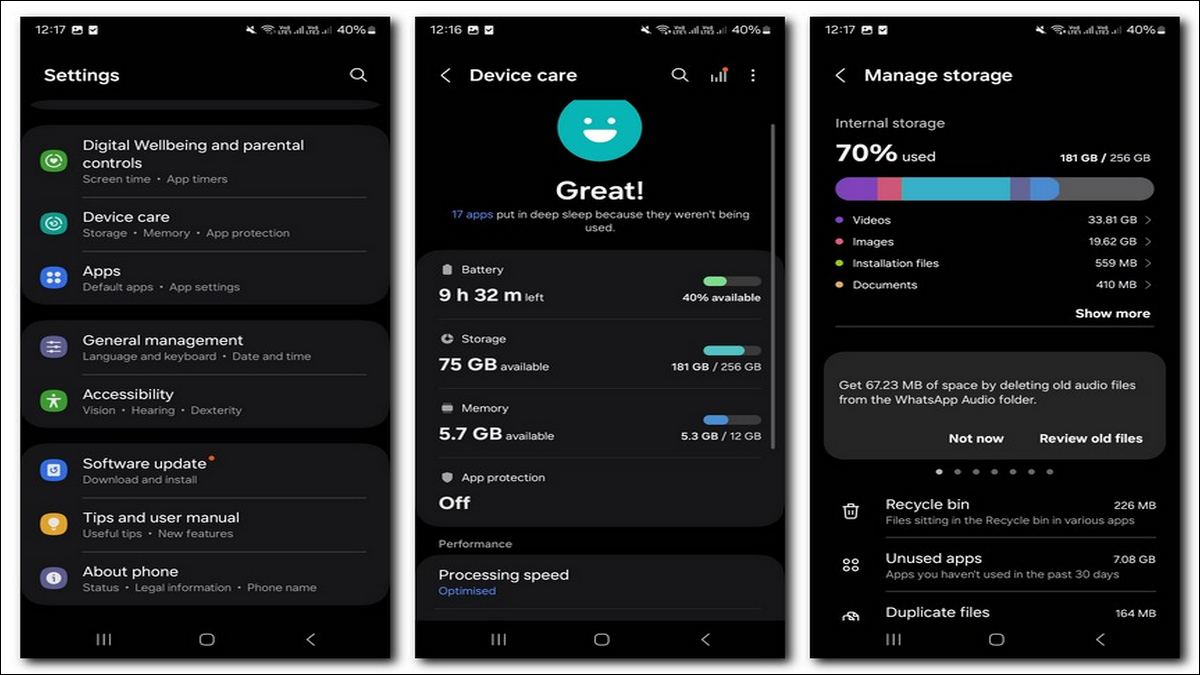
Tip 6: Be Mindful of Storage
Your phone needs a bit of wiggle room to operate smoothly. If its storage is always jam-packed, things are bound to slow down. Here are some ways to keep an eye on things:
- Check your storage regularly: Go to Settings > Device care > Storage. This will show you how much space you have left and what’s taking it up.
- Aim for some free space: It’s hard to give an exact number, but try to keep a few gigabytes free at all times. Your phone will thank you for it.
- Use cloud storage: Services like Google Photos or Dropbox are lifesavers! Backup your photos and videos to the cloud and free up valuable space on your phone.
- Think before you download: Do you really need that huge game or every episode of that podcast? Be selective with your downloads to avoid storage overload.
If your phone’s storage is constantly close to full, that’s a recipe for slowdown. Try to keep some free space for your phone to breathe.
Tip 7: Use ‘Lite’ Versions of Apps
Big-name apps like Facebook, Instagram, Twitter, and even Uber often have “Lite” versions designed specifically for less powerful phones and slower internet connections. These Lite apps take up less space, use less data, and run smoother on your Galaxy F14.
- Where to find them: Sometimes Lite versions are right in the Google Play Store, other times you might need to download them from the app developer’s website. A quick search like “Facebook Lite download” should lead you to the right place.
- What you might miss: Lite versions usually have the core features of the main app but might lack things like video chat or fancy visual effects. It’s a trade-off between speed and the full range of features.
Tip 8: Beware of ‘Speed Booster’ Apps
It’s tempting to think a “speed booster” app is the answer to your phone woes. Unfortunately, these apps often do more harm than good. Here’s why:
- False promises: They claim to magically optimize your phone but rarely deliver significant results.
- They run constantly: Ironically, these booster apps themselves use up memory and battery, potentially slowing things down further.
- Privacy concerns: Some of these apps collect data about your phone usage, which raises privacy issues.
Bottom Line: The best way to “boost” your phone is with the manual tips mentioned here. Don’t rely on shortcuts from untrusted apps that often end up causing more problems than they solve.
Tip 9: Disable Bloatware (If Possible)
Ever noticed apps pre-installed on your phone that you never use? Those are likely bloatware – apps from your carrier or phone manufacturer that take up space and might run in the background. Disabling them can free up some resources and potentially improve performance.
Here’s the thing: Disabling bloatware options can vary depending on your specific Galaxy F14 model and software version. Some may allow you to fully uninstall them, while others might only let you disable them. Disabling hides the app from your app drawer and prevents it from running background processes, but it won’t free up the storage space it takes.
How to Try Disabling Bloatware:
- Long press on the app icon on your home screen or app drawer.
- If you see an “Uninstall” or “Deactivate” option, that’s your lucky day! You can likely remove the bloatware completely.
- If you only see a “Disable” option, that’s the next best thing. Tap it to hide the app.
Important Note: Be careful not to disable any system apps you’re unsure about. Some essential system apps might have generic names, so do a quick web search if you’re not familiar with an app before disabling it.
By following these steps, you can hopefully banish some bloatware and give your Galaxy F14 a tiny performance boost. Remember, it might not be a complete removal on all models, but it can still help with a cleaner and potentially faster experience.

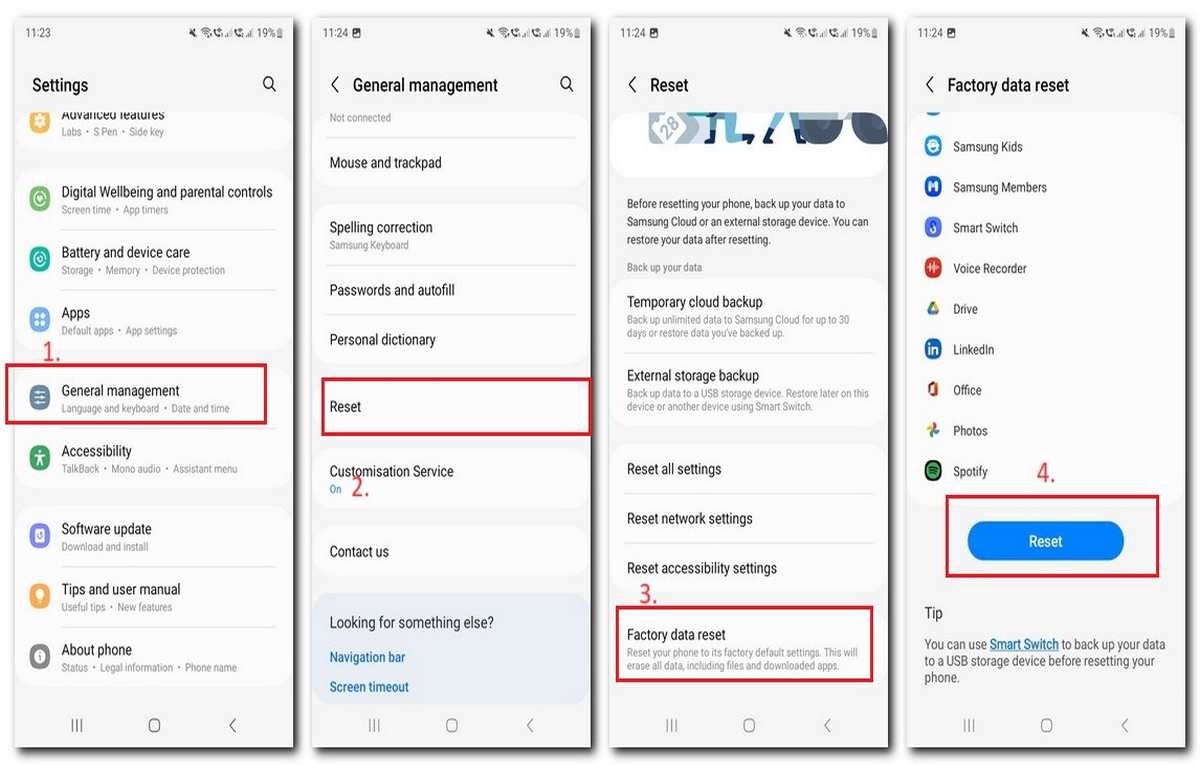
Tip 10: Consider a Factory Reset (Last Resort)
Think of a factory reset as the ultimate deep clean for your phone. It wipes everything – your settings, apps, photos – and gives you a totally fresh start. Here’s why this is a last resort and what to keep in mind:
- When it can help: If your phone is unbearably slow, constantly glitching, and the other tips haven’t done much, a factory reset might be worth considering.
- Backup is crucial: Before you reset, back up everything you care about. Photos, contacts, important files – get those saved to the cloud or a computer. Otherwise, they’ll be gone for good.
- It’s not a miracle cure: If your Galaxy F14 is several years old, even a factory reset won’t make it feel like a brand-new phone. New software and apps are always getting more demanding, and older hardware eventually struggles to keep up.
Steps to Factory Reset Your Samsung Galaxy F14:
- Find the Settings app icon (it usually looks like a gear) and tap it.
- Scroll down the Settings menu and locate the “General Management” option.
- Within “General Management,” find and tap on the “Reset” option.
- You’ll see several reset options. Select “Factory Data Reset.”
- Scroll to the bottom of the screen and tap the “Reset” button.
- You may be asked to enter your PIN, pattern, or password to confirm.
- Tap the “Delete All” button to start the reset process.
Here’s a complete article on — how to reset a Samsung Galaxy phone.
Conclusion
These tips won’t turn your F14 into a racecar, but they should make a noticeable difference in daily use. If your phone is a few years old, some slowdown is expected. But before you upgrade, try these tricks and get some extra life out of your trusty F14!
If you find any other issues on your phone, make sure to drop your comment below. We would be happy to help you further!!
-

-

-

-

-

-

-

-

