Your Google Pixel 8a has some hidden settings called “Developer Options.” These are special tools mostly used by people who create apps or want to change how their phone works. But you don’t need to be a tech expert to use them! In this guide, we’ll help you enable Developer Options on your Pixel 8a, and discuss important features like USB Debugging, fast animations, OEM Unlock, and many more.
With Developer Options, you can do cool things like change how fast your phone’s screen moves or even connect your phone to your computer in special ways.


Here’s what you’re going to learn:
Why Turn On Developer Options?
You might want to turn on Developer Options for a few reasons:
- USB Debugging: It lets you connect your phone to your computer and use special tools. It helps fix problems or move files between your phone and computer.
- Change Animations: You can make your phone feel faster by speeding up the animations, like how quickly apps open and close.
- Unlock Bootloader: If you want to make big changes to your phone’s software, like installing a new version of Android, you need to unlock the bootloader first.
And there’s more you can do. We’ll discuss that in detail later.
Warning: Developer Options have powerful tools. Changing some settings might make your phone act strange or not work properly. Be careful and only change settings if you know what they do.
Read also: 10 Best Apps for Google Pixel 8a
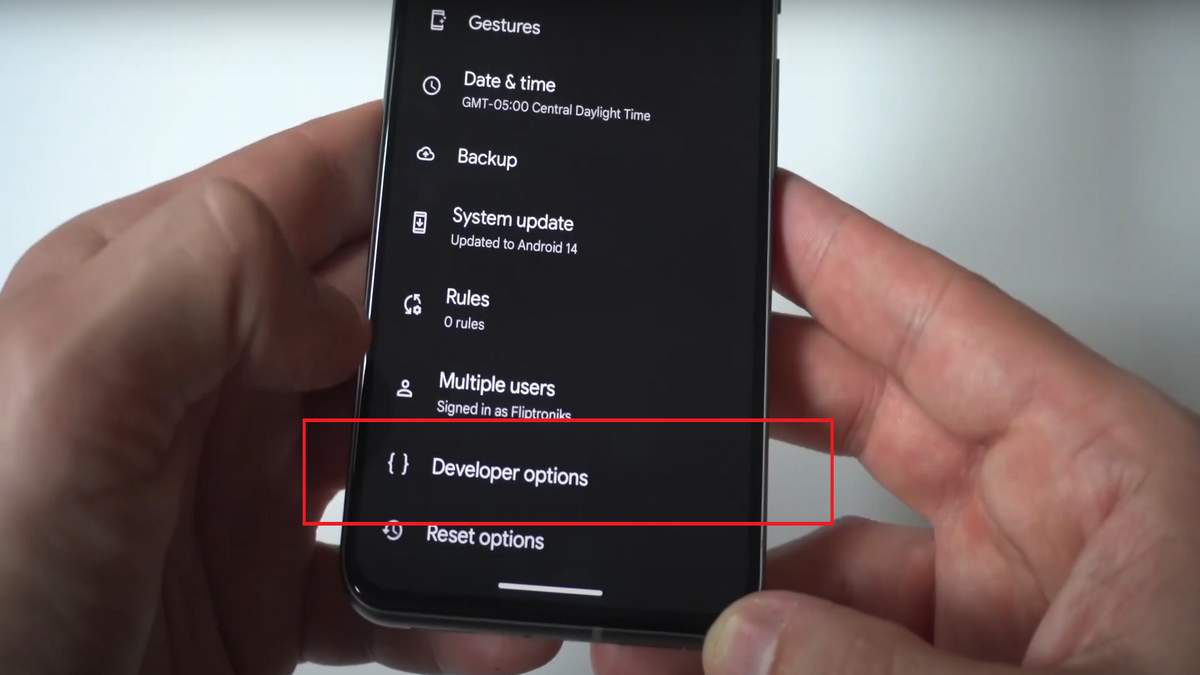
How to enable Developer Options on Pixel 8a
This pretty easy to turn on Developer Options on Google Pixels smartphones. And mostly, the entire procedure remains the same for most Pixel smartphones.
Here are the steps you need to follow:
- Open Settings: Go to the app with the gear icon (Settings) on your phone’s screen. This is where you change all kinds of settings for your phone.
- Find System: Under the Settings screen, scroll down and find “About Phone“. Tap on.
- Tap, Tap, Tap! Now, look for an option that says “Build number“. Tap on it seven times quickly. Your phone will show a message counting down, like “You are now 3 steps away from being a developer.” Keep tapping until it says “You are now a developer!“.
- Find Developer Options: Go back to the main Settings screen. Now, there should be a section named “System“. Tap on it.
- Tap on “Developer options”: You should see it near the bottom of the “System” menu. Tap on it to see all the hidden settings!
That’s it! That’s how you gain access to this hidden settings on your phone. Now, let’s get forward and see how it can be useful to you!
Read also: 20 Best Games for Google Pixel 8a

How to use Developer Options on Pixel 8a
Now you have a lot of new options to play with! Here are a few you might find interesting:
- USB Debugging: If you want to connect your phone to your computer for development, turn this on.
- OEM Unlocking: If you want to unlock your phone’s bootloader, turn this on.
- Window Animation Scale, Transition Animation Scale, Animator Duration Scale: These options let you change how fast your phone’s animations are. If you set them to 0.5x, your phone will feel much faster!
Remember, be careful when changing these settings. If you’re not sure what something does, it’s best to leave it alone.
Developer Options has even more cool tricks! You can do even more with your Pixel 8a.
- Dark Mode for Everything: Don’t like bright screens? You can make all your apps dark, even if they don’t have that option.
- Change Colors: Choose your favorite color for different parts of your phone’s screen.
- Make Your Phone Faster: If your phone is slow, you can limit how many apps run in the background. This can free up space and make your phone run faster.
- Pretend to Be Somewhere Else: You can trick apps into thinking you’re in a different place. This can be useful for testing apps or playing games.
- See Your Finger Taps: You can see dots on your screen where you tap. This can be helpful for making videos about how to use your phone.
Boost Performance:
- Limit Background Processes: If you have limited RAM, set a limit on how many apps can run in the background to free up resources and potentially improve performance.
- Disable HW Overlays: This can help fix display issues in some apps.
- Force 4x MSAA: Enable this for smoother graphics in some games, but it may impact battery life.
Debugging and Testing:
- Mock Locations: Pretend you’re in a different location for apps that use GPS. This can help test location-based apps or play games that require you to be in specific areas.
- Show Touches/Pointer Location: Visualize where you’re touching the screen, which can help create tutorials or demos.
- Profile GPU Rendering: See how your phone’s graphics processor is performing.
Other Cool Tricks:
- Stay Awake: Prevent your screen from turning off while charging.
- Enable Bluetooth HCI Snoop Log: Record Bluetooth activity for troubleshooting.
Advanced Users:
If you’re comfortable with technical terms and have some programming knowledge, Developer Options offer even more possibilities. You can enable root access, change system fonts, and even experiment with modifying the Android operating system itself.
Here’s a guide to root your phone: How to root Google Pixel 8a
Remember:
- Explore with caution! Some options can significantly impact your phone’s performance or stability.
- Read the descriptions carefully before changing any settings.
- If something goes wrong, you can usually fix it by turning off the option or restarting your phone.
There are many more options to try! Just remember, some of these settings can change how your phone works, so be careful. If something goes wrong, just turn off the option or restart your phone.
If you’re good with computers, you can do even more with Developer Options. You can get special access to your phone’s files, change the fonts, and even try changing how Android works. But this is for experts! Be careful not to break anything.
How to Turn Off Developer Options
If you want to hide Developer Options again, it’s easy. In the Developer options menu, just tap the switch at the top to turn them off. Then, restart your phone. The Developer options will disappear until you turn them back on.
Troubleshooting
If you can’t find Developer Options after following the steps, try restarting your phone. If you change a setting and something weird happens, change it or restart your phone.
You can try turning off Developer Options on your phone to fix issues if you find any.
Now you know how to unlock the secret settings on your Pixel 8a! Explore Developer Options and see what cool things you can do with your phone. Just remember to be careful and have fun!
-
-

-

-

-

-

-

-

