You delete a photo, empty out an old folder, or accidentally long-press the wrong file in your gallery – and it’s gone. Except it isn’t, not really. Not right away. What actually happens under the hood when Android “deletes” something is a lot messier and more interesting than most people assume, and it explains why some deleted files come back with the right tool while others are gone for good no matter what you try.
Let’s get into how this actually works.
Deletion Is Mostly Bookkeeping, At First
Android’s storage is built on Linux file systems – ext4 for a long time, and F2FS (Flash-Friendly File System) on a lot of newer devices, since it’s designed with NAND flash in mind rather than spinning disks.
When you hit delete, Android isn’t reaching into the flash chip and zeroing out your file byte by byte. That would be slow and unnecessary. Instead, it does something much simpler:
- The file’s entry gets pulled out of the directory listing, so it stops showing up in any app.
- The inode – the little metadata record that tracks size, permissions, and where the data physically lives – gets marked as free.
- The data blocks that actually held your photo or document are flagged as “available,” meaning the system is now free to write something else there.
The content itself is usually untouched at this point. It’s just sitting on the flash memory, orphaned, waiting for something new to claim that space. This is exactly why recovery software works at all – for a while, the data is technically still there, just invisible.
Then TRIM Shows Up and Complicates Things
This is where phones behave very differently from an old hard drive, and it’s honestly the part most people don’t know about.
Flash storage can’t just overwrite data in place the way a magnetic disk can. A NAND cell has to be erased entirely before it can hold new data, and erasing happens in chunks — whole blocks, not single files. To keep write performance from tanking over time, Android’s storage controller runs the TRIM command along with background garbage collection, which goes through and proactively wipes blocks that have been marked as deleted, clearing them out ahead of time so they’re ready for future writes.
In practice, that means the “safe window” for recovering a deleted file on Android can be shockingly short. On some devices, TRIM can clean up freed blocks within minutes. That’s very different from, say, a Windows recycle bin, where a file might sit untouched on disk for months.
And Then There’s Encryption
Since Android 10, most devices ship with File-Based Encryption turned on by default. Every file gets encrypted with its own key, tied back to the device and stored in secure hardware. Here’s the part that trips people up: when a file is deleted, some implementations discard that file’s key almost immediately – even if the raw encrypted bytes are technically still sitting on the storage chip.
Worth repeating because it matters: data existing on disk and data being usable are two different things. If the key is gone, the leftover bytes are just noise. No recovery tool, no matter how good, can decrypt data without the key.
So What Does “Permanently Deleted” Actually Mean?
Loosely, it means the file has crossed one of a few thresholds where getting it back stops being realistic:
| State | What’s happened | Odds of recovery |
| Sitting in “Recently Deleted” | Just hidden from view, data untouched | Very good |
| Deleted normally, bypassing any trash folder | Reference removed, blocks marked free but not yet wiped | Good, if you act fast |
| TRIM/garbage collection has run | Blocks physically erased at the hardware level | Poor |
| New data written to the same blocks | Original content is gone, replaced | None |
| Encryption key discarded | Bytes might exist, but they’re unreadable | Effectively none |
| Factory reset on an encrypted device | Master key destroyed, whole partition unreadable | None |
Notice that “deleted” covers the top rows of that table, and “permanently deleted” is really just what happens once you slide down to the bottom few. There’s no single moment where a switch flips – it’s a gradual narrowing of possibility.
Why This Makes Recovery Tools Tricky to Get Right
Given all of that, a recovery tool built for Android can’t just act like a file browser looking for stuff in the trash. It has to dig deeper than that. A tool that’s actually built for the job needs to:
- Scan below the visible file system, not just rely on whatever the OS still thinks exists
- Recognize files by their internal signatures (headers, footers, structure) so it can piece together content even when the metadata pointing to it is already gone – a technique usually called file carving
- Work across both internal storage and SD cards, which often use different file systems entirely
- Navigate around Scoped Storage restrictions that recent Android versions put in place to stop apps from freely poking around each other’s files
Most generic “file recovery” apps on the Play Store don’t really do any of this. They just look for what’s still visible, which – as we’ve established – isn’t where the interesting recovery work happens.
Stellar Data Recovery for Android
This is really the space where Stellar Data Recovery for Android was built to operate. Instead of treating an Android phone like it’s just another USB drive, it’s designed around the specific quirks covered above – flash memory behavior, F2FS/ext4 differences, and the reality that useful data often has no metadata left pointing to it.
A few things worth knowing about how it approaches the problem:Two scan modes, for two different scenarios. A quick scan checks for anything still lingering in cache-like structures or recently-cleared trash areas – good for files you just deleted. A deep scan goes further, carving the storage sector by file signature to catch things where the directory entry is already gone.
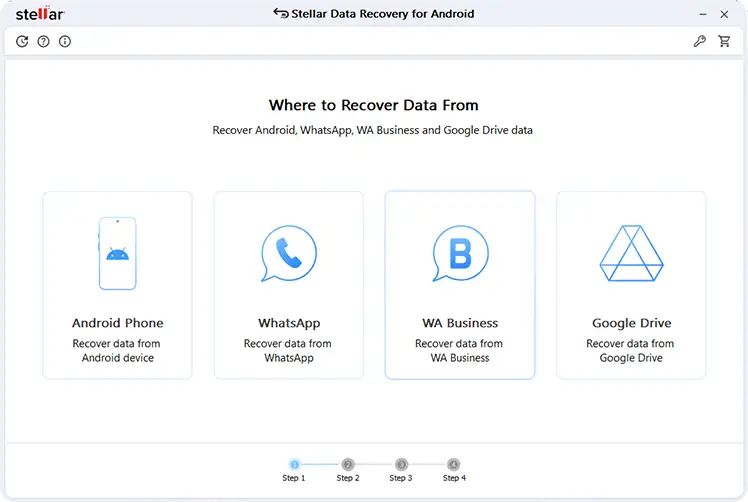
Format coverage that’s actually broad. Photos, videos, contacts, call logs, SMS threads, and various document types are all fair game, not just images.
Preview before you commit. You get to look at what’s recoverable before pulling the trigger, which matters – starting a full recovery blind risks writing more data to the device and burying whatever you’re trying to save.
Root is helpful, not mandatory. Deeper scans benefit from root access since it opens up lower-level partition access, but basic recovery is built to function without rooting the device, which most people understandably don’t want to do.

Handles internal and external storage differently, correctly. Internal storage is usually ext4 or F2FS; SD cards are often FAT32 or exFAT. The tool accounts for that instead of treating everything the same way.
If you’ve just realized something’s missing and haven’t used the phone much since, this is the tool worth reaching for first. Time matters more than almost anything else in this process.
When Nothing Else Works: Android Data Recovery as a Last Resort
Sometimes a targeted scan still comes up empty – maybe too much time has passed, maybe the phone’s been used heavily since the deletion happened, maybe TRIM already did its job. In situations like that, broader Android Data Recovery methods are worth trying as a final option, even though they’re more involved.
These typically combine deep, sector-level scanning with device-specific extraction, and depending on the device, they may call for USB debugging to be enabled, specific drivers installed, or – in some cases – a temporary root grant to get at the raw partition. They’re usually treated as a last resort rather than a first move, for a few reasons:
- They tend to require more setup and technical fiddling than a straightforward app-based scan
- The longer a device has been used post-deletion, the lower the odds of anything turning up
- They cast a much wider net across raw storage, which takes longer but occasionally catches fragments other approaches miss entirely
The Bottom Line
“Deleted” on Android is a spectrum, not a switch. Whether a file can come back depends on how the file system marked it, whether TRIM has already run, whether the encryption key survived, and how much you’ve used the device since. The single biggest factor you actually control is speed – the sooner you stop using the phone and start a recovery attempt, the better your odds. Start with something purpose-built for Android’s storage quirks, like Stellar Data Recovery for Android, and if that comes up short, a broader Android Data Recovery approach is still there as a fallback before you write the file off entirely.