Learn how to factory reset your OnePlus Nord 5 with this easy step-by-step guide. Fix slow performance or prepare your phone for sale. Includes simple instructions, tips, and troubleshooting help.
What we’ll cover:
A factory reset can fix problems with your OnePlus Nord 5. It helps when your phone is slow, apps crash, or you want to sell it. This process erases all your data and restores the phone to its original state. It’s like giving your phone a fresh start. I know it can feel stressful to lose your data.
That’s why this guide makes the process easy. We’ll cover what you need to do before resetting, step-by-step instructions, and tips for common issues. By the end, you’ll know how to reset your phone safely and confidently.
Let’s get started with what you need to prepare.
What You Need Before Resetting
Before you reset your OnePlus Nord 5, take these steps. They’ll help you avoid losing important data or running into problems.
- Back Up Your Data: Save your photos, videos, contacts, and files. Use Google Drive, OnePlus Cloud, or an external drive. A reset deletes everything on your phone.
- Know Your Google Account: You’ll need your Google account email and password. This is for Factory Reset Protection (FRP) after the reset.
- Charge Your Phone: Make sure your battery is at least 60%. This prevents your phone from shutting off during the reset.
- Internet Connection: Have Wi-Fi or mobile data ready. You’ll need it for backups or signing in later.
- Remove Accounts (Optional): You can unlink your Google account before resetting. Go to Settings > Accounts and Backup > Accounts. Select your Google account and tap Remove Account.
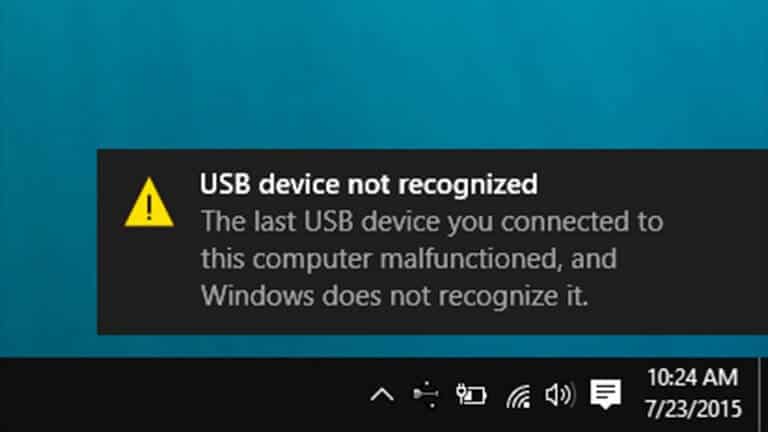
- USB Cable (Optional): Keep a USB cable and computer nearby. This is for advanced troubleshooting if needed.
Warning: If you don’t back up, your data will be gone forever. Double-check your backups before moving forward.
Also read:
Best Methods To Factory Reset Your OnePlus Nord 5
1. How to Factory Reset Using Settings
This is the easiest way to reset your OnePlus Nord 5. Follow these steps carefully.
- Open Settings:
- Unlock your phone.
- Find the Settings app on your home screen or app drawer.
- Tap it to open.
- Go to System Settings:
- Scroll down in the Settings menu.
- Tap System.
- Then tap Additional Settings.
- Find Reset Options:
- In Additional Settings, tap Back Up and Reset.
- Choose Erase All Data (Factory Reset).
- Check the Warning:
- Read the message on the screen. It says all your data will be deleted.
- Make sure the option to erase internal storage is checked.
- Tap Erase All Data.
- Enter Your PIN:
- Type your phone’s PIN, password, or pattern.
- Tap Confirm to move forward.
- Start the Reset:
- Tap Erase All Data again.
- The phone will start erasing everything. This takes 2-5 minutes.
- Don’t touch the phone during this time.
- Set Up Your Phone:
- The phone will restart when done.
- Follow the on-screen steps to set it up again.
- Choose your language, connect to Wi-Fi, and sign in with your Google account.
Tip: Keep your phone on a flat surface during the reset. Don’t press buttons or turn it off. This avoids problems.
2. Resetting Through Recovery Mode
If your phone won’t turn on or you can’t use the settings, try recovery mode. Here’s how to do it.
- Turn Off Your Phone:
- Press and hold the Power button.
- Tap Power Off on the screen.
- Wait until the phone is fully off.
- Enter Recovery Mode:
- Press and hold the Volume Down and Power buttons together.
- Hold them for 10-15 seconds.
- Let go when you see the OnePlus logo.
- Move Through the Menu:
- Use the Volume buttons to highlight Wipe Data/Factory Reset.
- Press the Power button to select it.
- Confirm the Reset:
- Choose Yes or Confirm to start the reset.
- If asked, enter your passcode or tap Forgot Password to skip it.
- Restart the Phone:
- After the reset, select Reboot System Now.
- Press the Power button to confirm.
- Your phone will restart and show the setup screen.
Caution: Use the right buttons (Volume Down + Power). Using Volume Up might open a different mode. Be careful to avoid mistakes.
Troubleshooting Problems
Sometimes, things don’t go smoothly. Here are common issues and how to fix them.
Phone Freezes During Reset
- Check that your battery is at least 60%.
- If it’s stuck, hold the Power button for 20 seconds to restart.
- Try the reset again.
Google Account Lock After Reset
- You might need to sign in with your old Google account.
- Use the email and password you had before the reset.
- If you forgot them, go to Google’s account recovery page.
- You can also contact OnePlus support for help.
Data Still on Phone
- Make sure you selected Erase Internal Storage during the reset.
- If data remains, repeat the reset process.
- Check that all options to erase storage are enabled.
Can’t Enter Recovery Mode
- Double-check you’re pressing Volume Down + Power.
- If it doesn’t work, connect your phone to a computer.
- Visit OnePlus’s support website for recovery tools.
Tip: If you’re stuck, check the OnePlus Community forums (community.oneplus.com). You can also contact OnePlus support at service.oneplus.com.
Best Practices for a Smooth Reset
To make your reset go well, follow these tips:
- Double-Check Backups: Before resetting, confirm your photos and files are saved. Use apps like Google Photos for easy backups.
- Update Your Phone: If possible, update your phone’s software before resetting. Go to Settings > System > System Update.
- Write Down Passwords: Keep a note of your Google account and phone PIN. This saves time after the reset.
- Use a Charger: Plug in your phone during the reset. This ensures it doesn’t run out of power.
- Test After Reset: After setting up your phone, test apps and features. Make sure everything works as expected.
Why You Might Need a Factory Reset
A factory reset is useful in many situations. If your phone is slow, it can speed things up. If apps keep crashing, a reset may fix them. Selling or giving away your phone?
A reset keeps your data safe. It’s like clearing a cluttered desk to start fresh. Just remember to back up first.
What Happens After a Reset
After the reset, your OnePlus Nord 5 will be like new. All apps, photos, and settings will be gone. You’ll need to set it up again. This includes choosing a language, signing in into Wi-Fi, and adding your Google account.
You can restore backed-up data during setup. For example, Google Photos can reload your pictures. Take your time to customize your phone again.
Also read: How to Reset OnePlus Nord 4
Wrapping Up!
Resetting your OnePlus Nord 5 is a simple way to fix issues or prepare it for a new owner. This guide showed you two ways to do it: through Settings or Recovery Mode. Always back up your data first to avoid losing important files.
Charge your phone and follow the steps carefully. If you run into problems, use the troubleshooting tips. The process takes just a few minutes but can make a big difference. After the reset, set up your phone with strong passwords and updated software.
For more help, visit OnePlus’s support website or community forums. You’re now ready to reset your phone with confidence!
![How to speed up Huawei P30 Pro New Edition [Tricks To Improve Performance]](https://androidcure.com/wp-content/uploads/2021/01/Speed-up-Huawei-P30-Pro-New-Edition-390x220.jpg)